Running a Workflow through the Everysk API
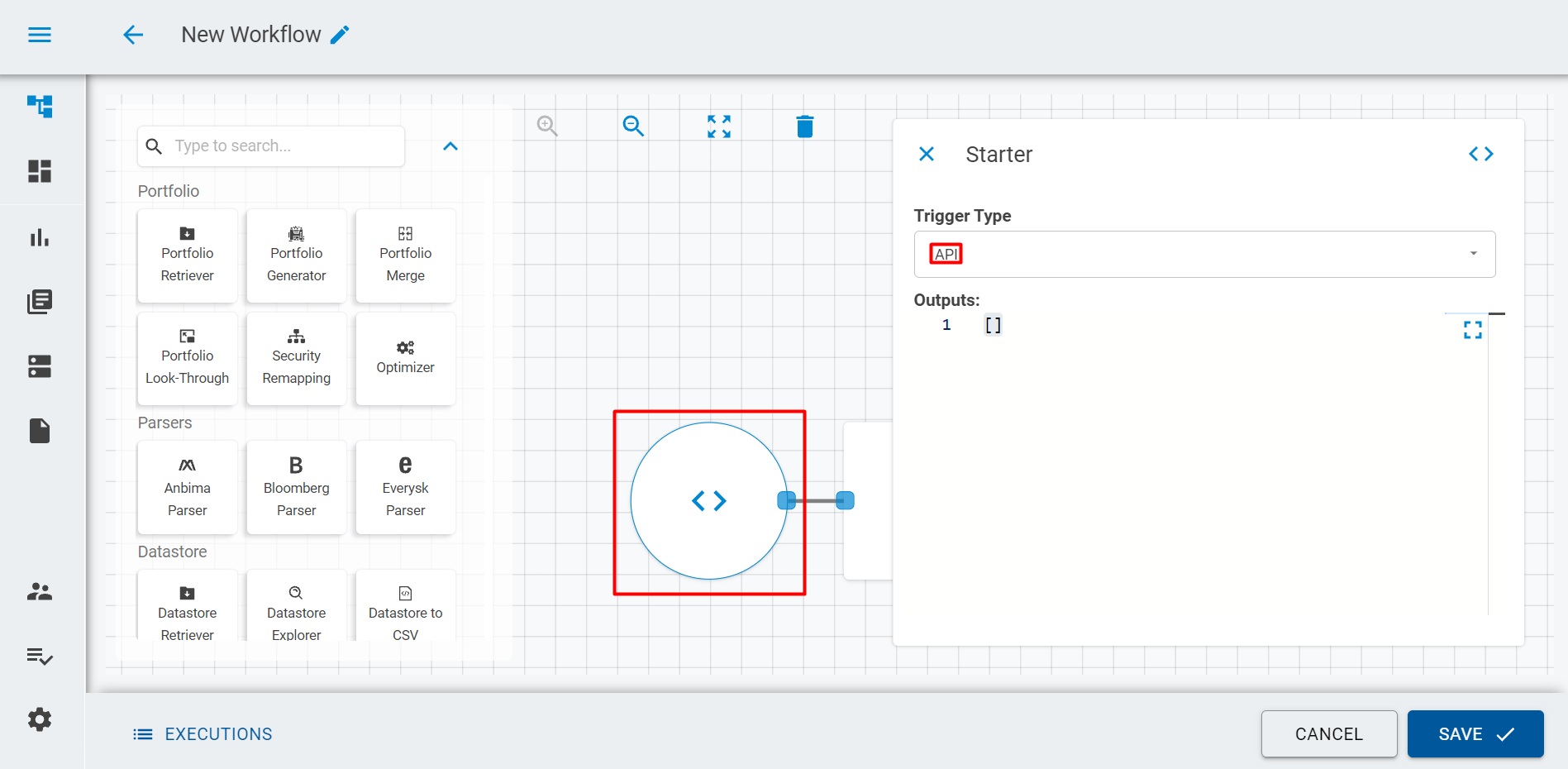
The Everysk API allows users to run workflows outside the Everysk Platform. To do so, first you have to change the starter worker trigger type to API (learn more about the starter worker here).
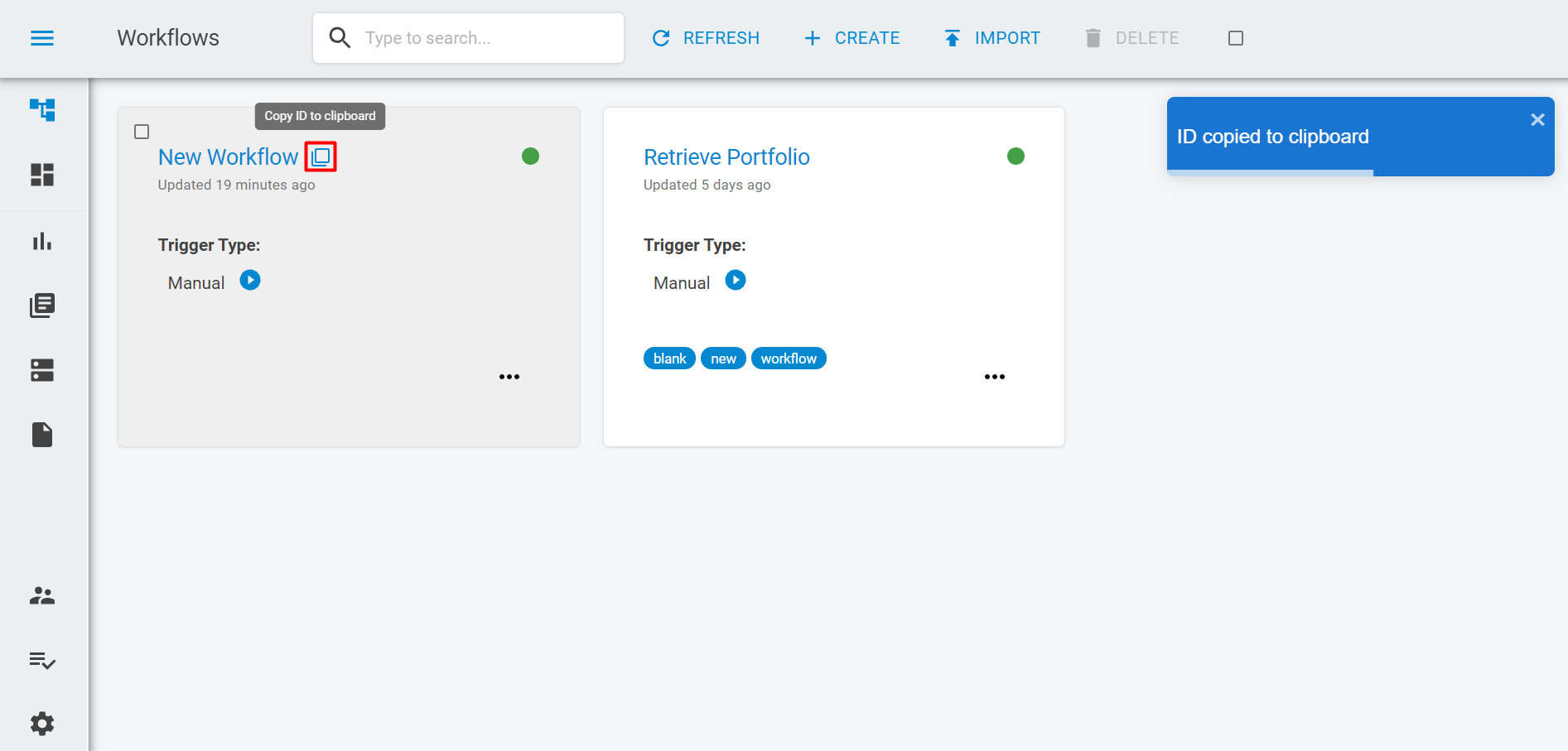
Then you must get your workflow id. You can find it by clicking on the icon besides your workflow's name on the workflows page. It will automatically copy the id to your clipboard.
The following examples run a simple workflow. For the full reference, see Run a workflow in the REST API and the Workflow entity in the Python SDK.
Running a workflow through the API is always asynchronous: the call responds with HTTP 202 Accepted, meaning the request was accepted and the workflow execution was started/queued, not that it already finished. You get back a workflow_execution object and need to retrieve it separately (see Retrieving a Workflow Execution) to check its status and result.
Python example
With the Python SDK installed and authenticated, run_and_wait() runs the workflow and waits for it to finish:
from everysk.sdk.entities import Workflow

workflow = Workflow(id='wrkf_RhNBYS32y9jFlfgiIU74OskWL')

worker_execution = workflow.run_and_wait(parameters={}, timeout=300, poll_interval=2)
print(worker_execution.result)
curl example
curl https://api.everysk.com/v2/workflows/wrkf_RhNBYS32y9jFlfgiIU74OskWL/run \
  -H "Content-Type: application/json" \
  -H "Authorization: Bearer <ACCESS_TOKEN>" \
  -d '{
        "parameters": {},
        "workspace": "main"
      }' \
  -X POST
The call returns the workflow_execution that was started:
{
  "workflow_execution": {
    "id": "wfex_V9lzF7epdIQFqoPYXEltfxGaX",
    "run_status": "RUNNING",
    "workflow_id": "wrkf_RhNBYS32y9jFlfgiIU74OskWL",
    "workflow_name": "New Workflow",
    "trigger": "API",
    "workspace": "main",
    "started_worker_id": "wrkr_WjKGu5wCMgUEVn1sEr9S1137w",
    "created": 1634749285
  }
}
To get an <ACCESS_TOKEN>, see Authentication. To wait for the result, see Polling for a workflow execution's completion.
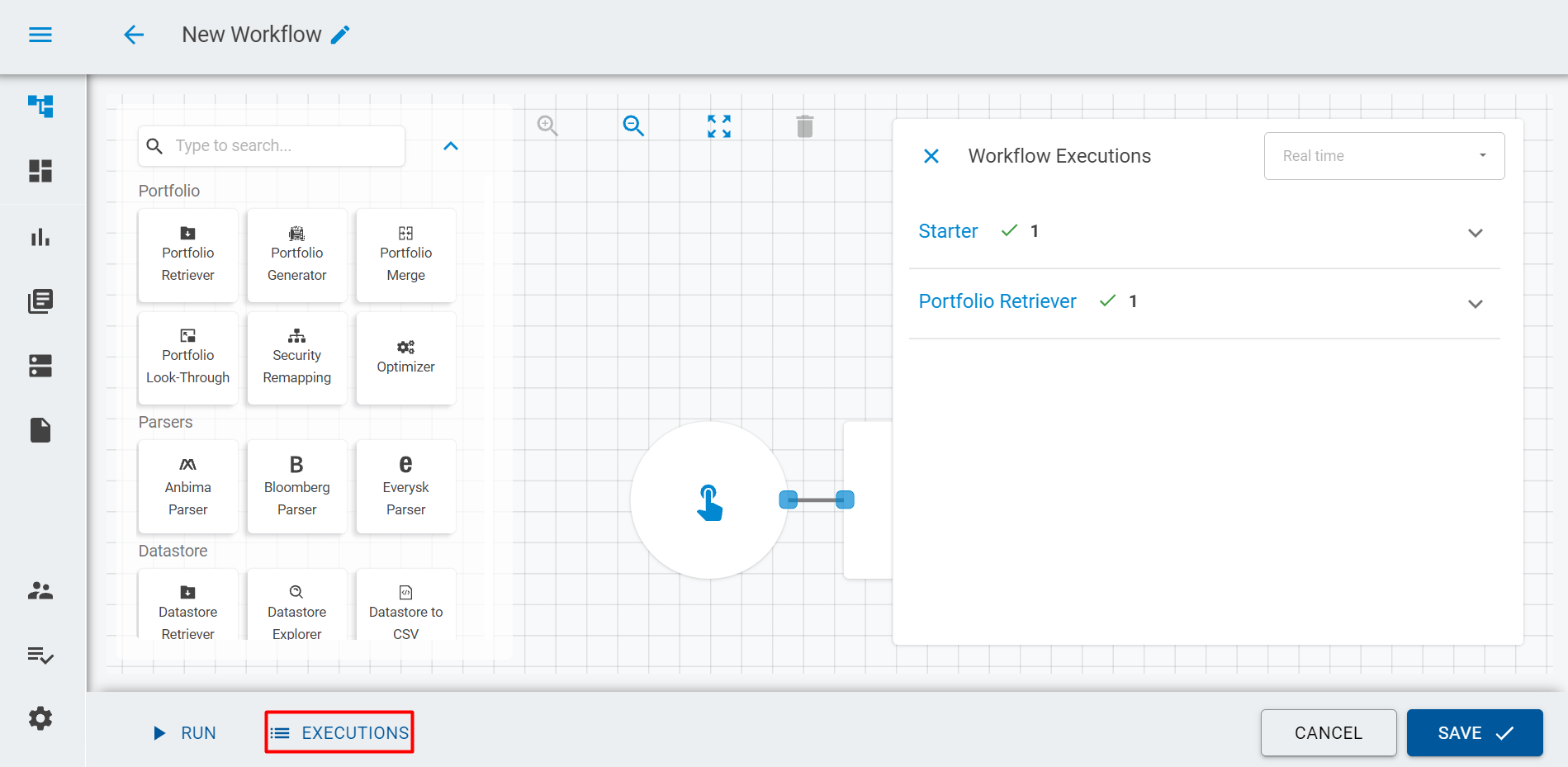
To check the run in the platform, go inside the workflow and click on the Executions button on the bottom. It will open a section containing information about the workflow execution, which means the workflow was executed successfully.