Importing Portfolios
From an XLS or CSV file
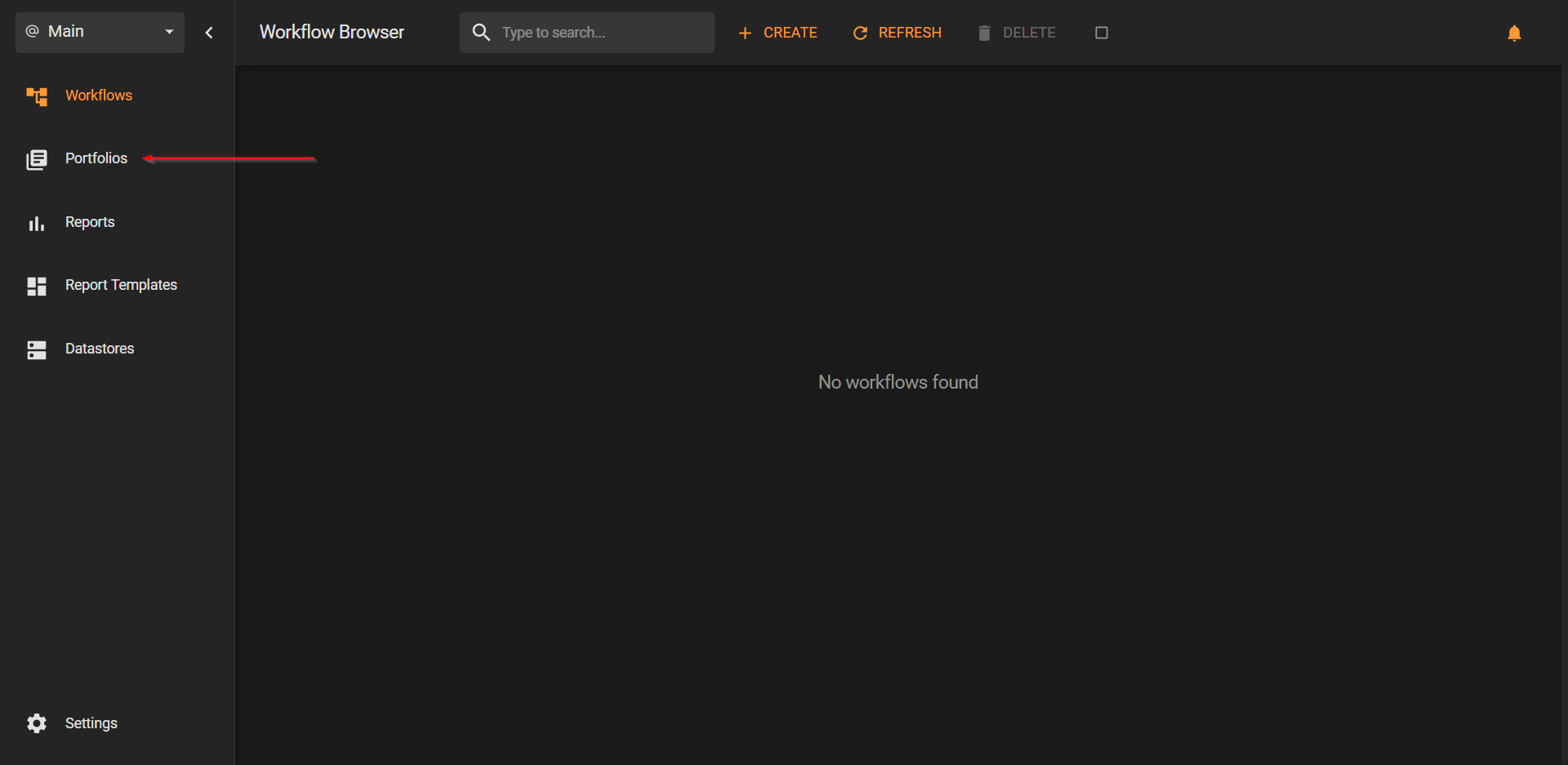
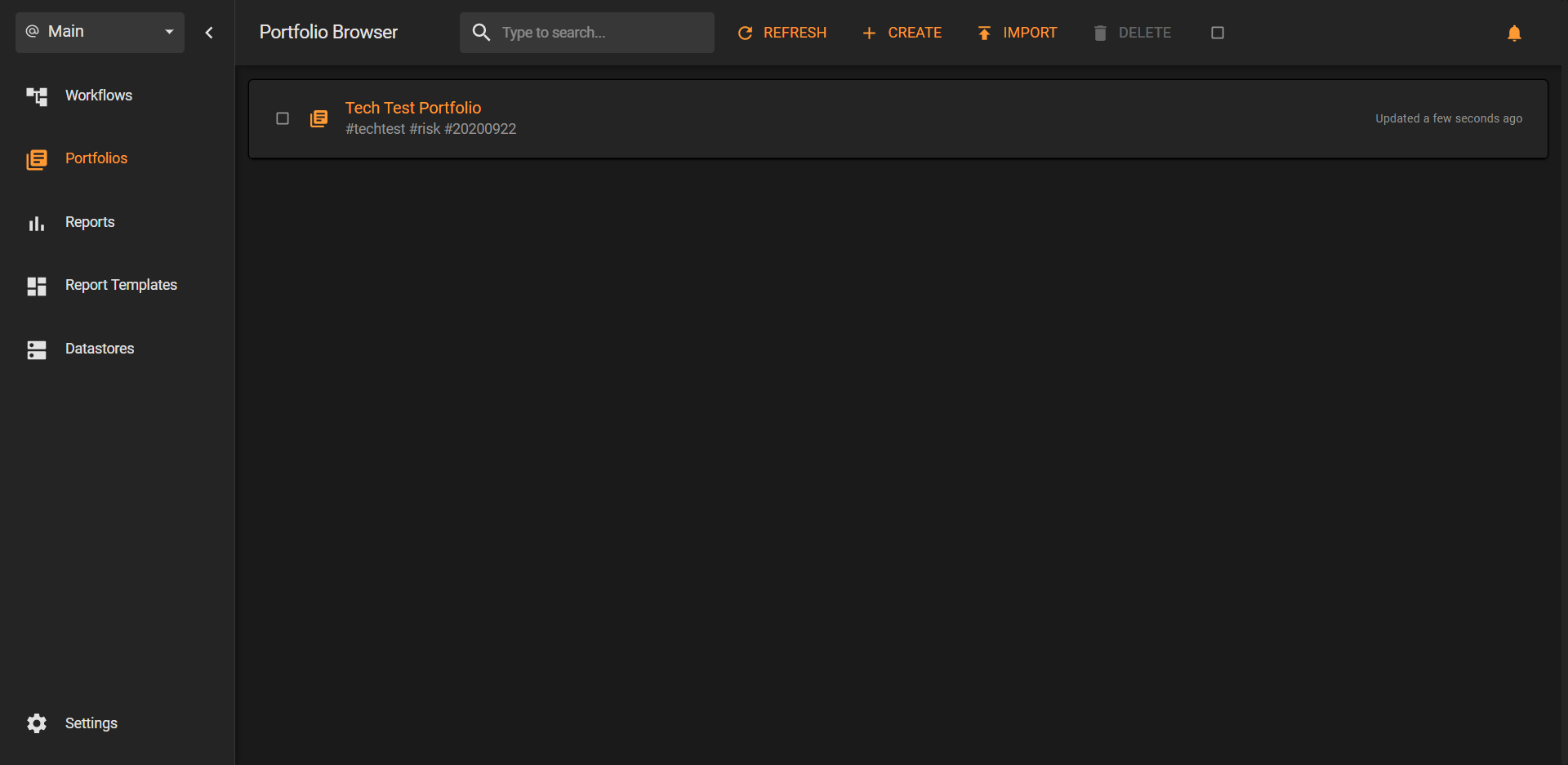
From the main page, click on "Portfolios" on the left-hand side of the page.
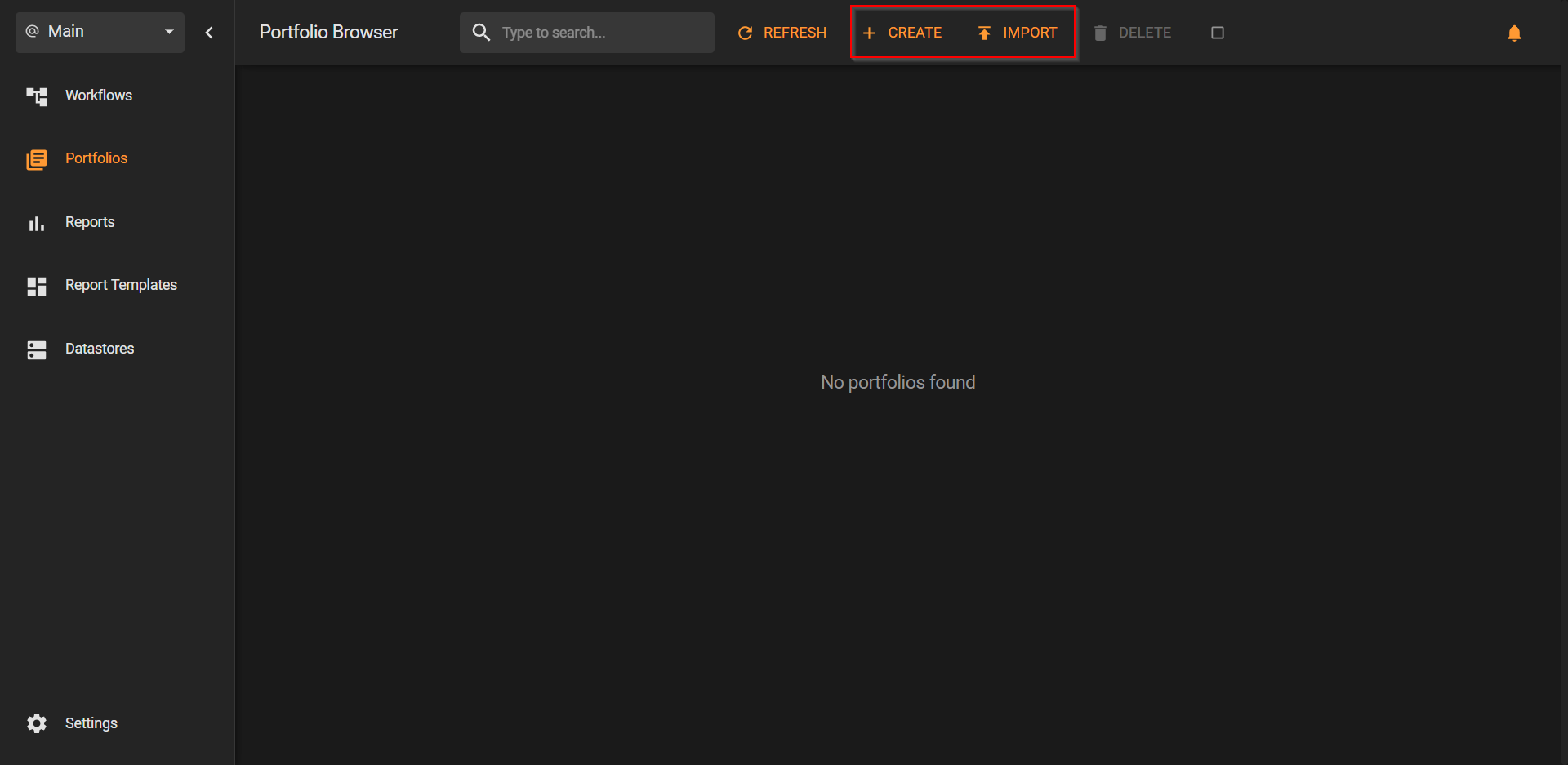
Now click on “Import” to upload your positions from an XLS or CSV file.
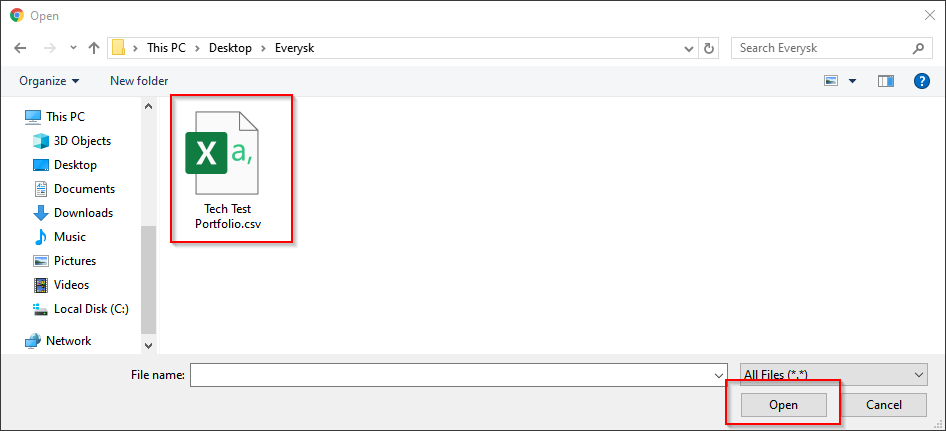
By clicking on the “Import” button, you will see a window. Select the file you want to import and then click on “open”.
The next page displays the positions in the file.
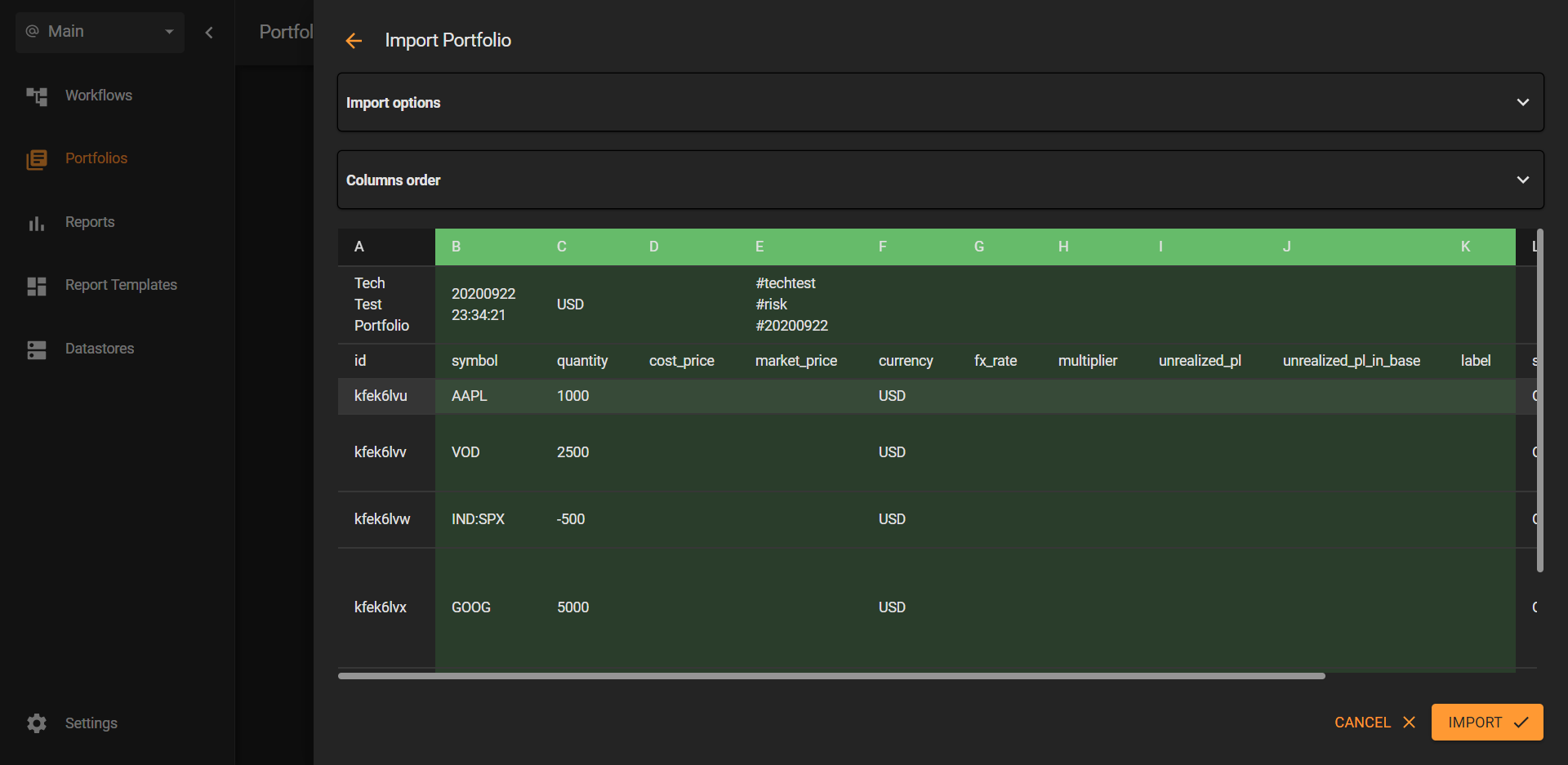
Import option: Allows you to set “Absolute” or “Relative” values.
Columns order: It allows you to map each column.
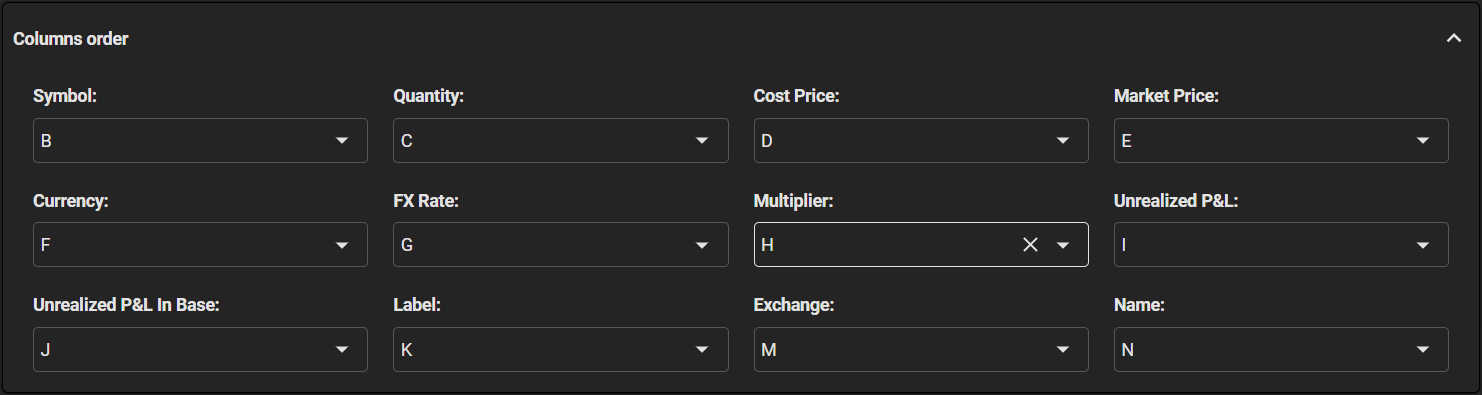
Click on “Import” on the bottom right.
See the positions imported. The “Status” column indicates if all positions are ok or if there is an error. If you see an error, you can manually edit the security.
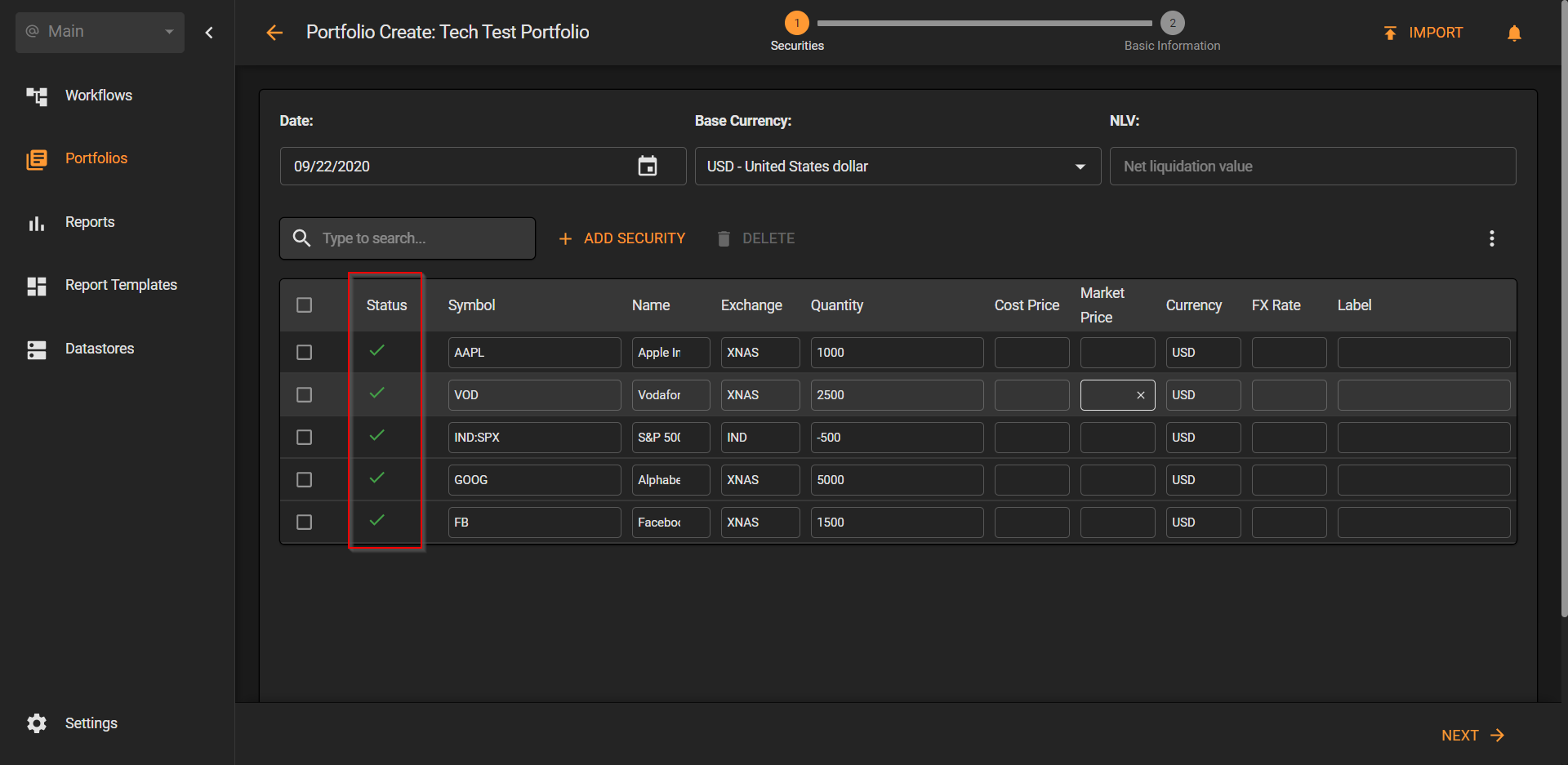
NOTE: For stocks traded outside the US, we use a ticker:mic nomenclature, where mic is the ISO 10383 market identifier code. For example, SIE:XETR is the stock of Siemens AG traded in the Xetra exchange. Please check this link for more info about all supported exchanges. Fixed Income, Options, and other derivatives need to follow our symbology rules: Symbology.
If all positions are ok, click on “next” on the bottom right.
Now add a name to your portfolio and insert a description. You may want to add hashtags to easily find or refer to this portfolio in the future.
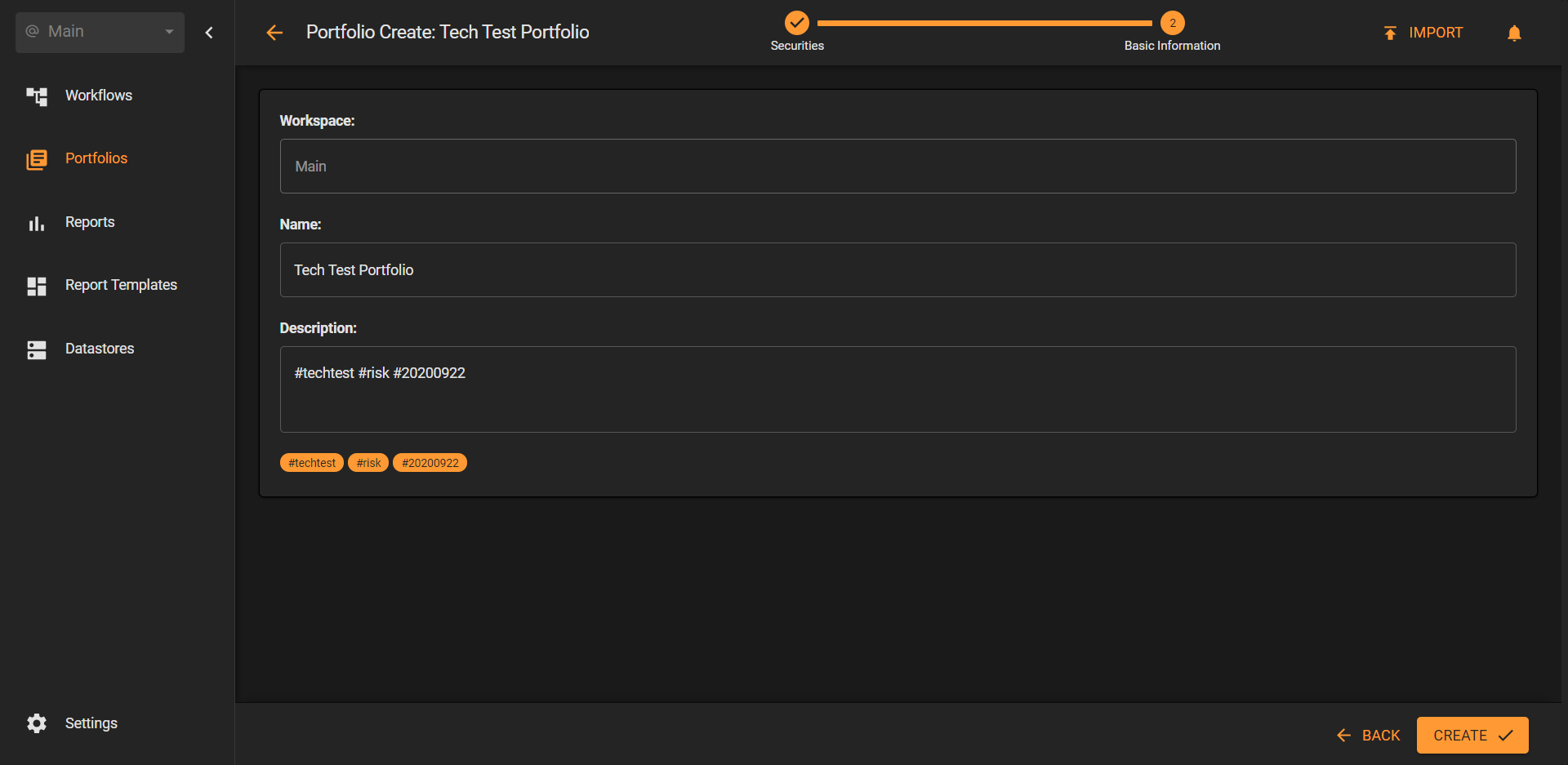
Hit “Create” on the bottom right. Find the portfolio on the main “Portfolio” page.
From an XLS file with multiple tabs
Before reading this help, please refer to general instructions on importing from an XLS file here.
Sometimes you might have different portfolios in different tabs in the XLS file. Dashboards Importform allows you to specify which tab you would like to select:

Select the tab:

From Black Diamond
Select the New/Import Portfolio button in the My Portfolios tab:
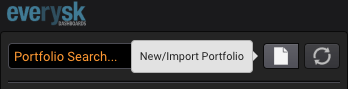
Then select the Import button located in the lower left corner:
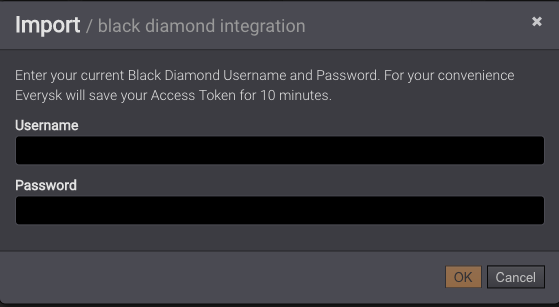
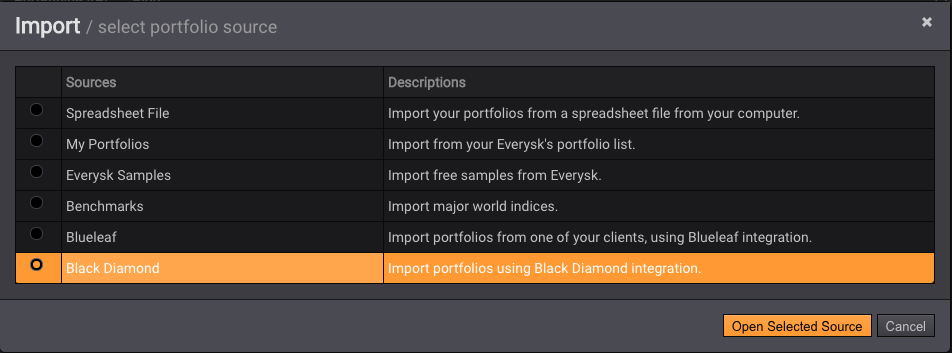
Select the source Black Diamond:
You will be asked to provide your Black Diamond credentials. For your convenience, Everysk will save your credentials for 10 minutes:
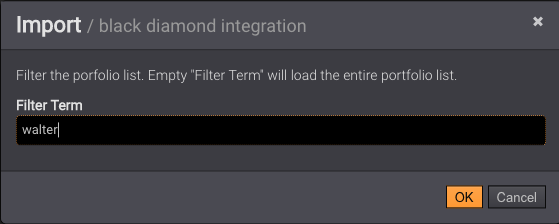
Next, you will have the option to filter only certain households. In the example below, "walter" is being used as the filter. Press OKto pull all the matches:
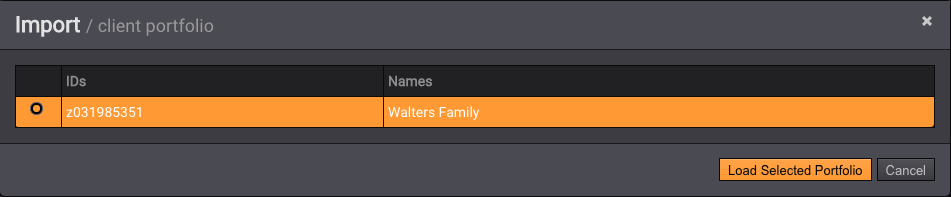
Press Load Selected Portfolio button to pull all the accounts for this client (portfolio).
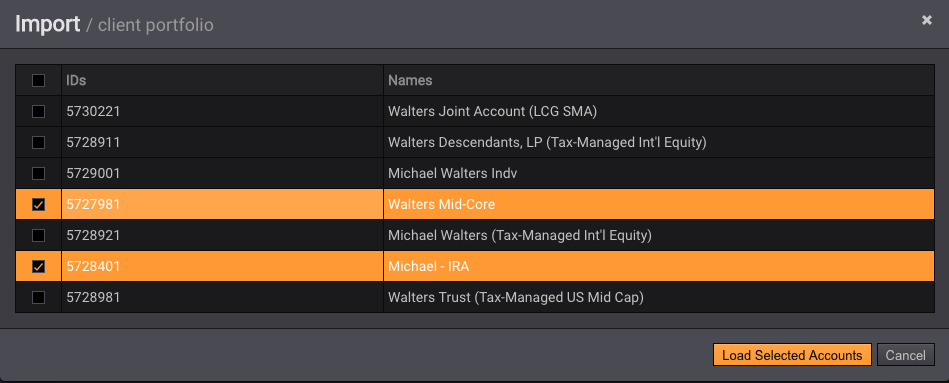
You can select multiple accounts to be analyzed together. Then, press Load Selected Accounts:
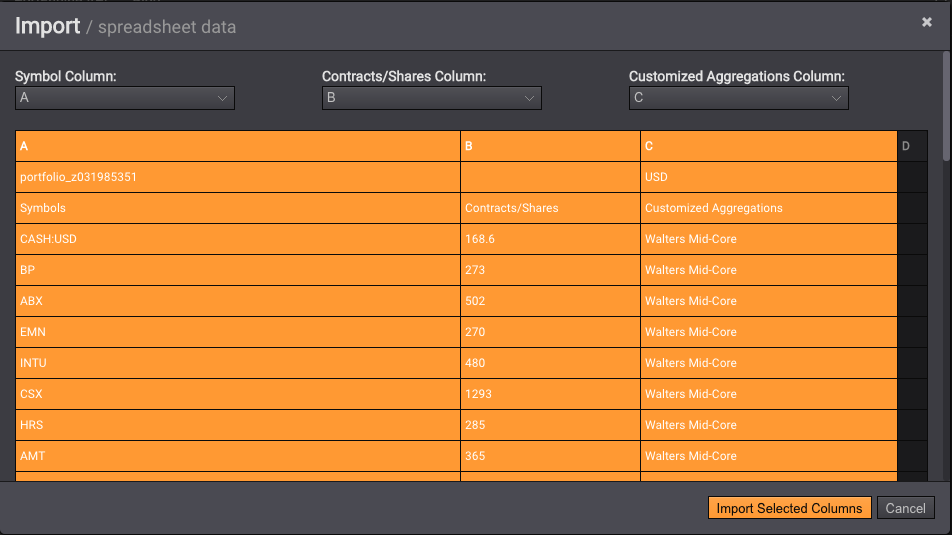
Press Import Selected Columnsto load the tickers and quantities into Dashboards. Note that the 3rd column is populated with the account names, so that risk can be aggregated as such:
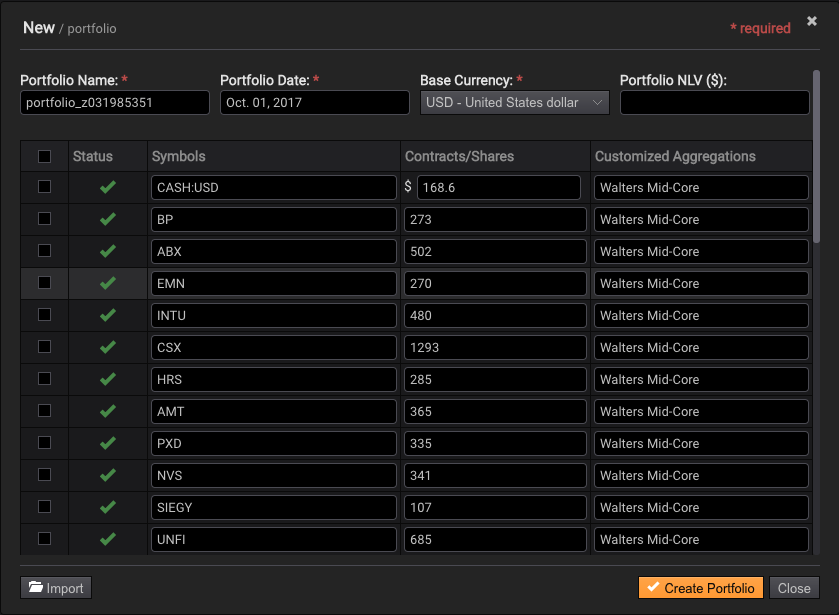
Finally press Create Portfolio:
From Blueleaf
Select the New/Import Portfolio button in the My Portfolios tab:
Then select the Import button located in the lower left corner:
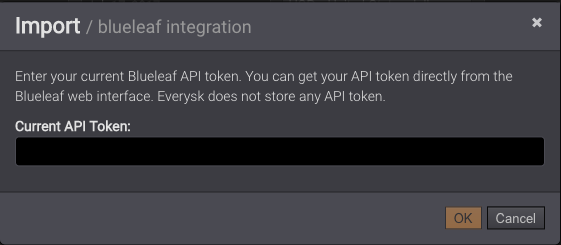
Select the source Blueleaf:
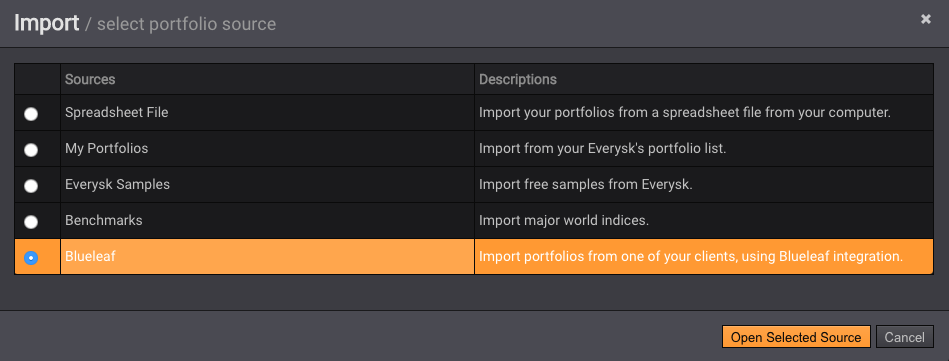
You will be asked to provide your Blueleaf API token:
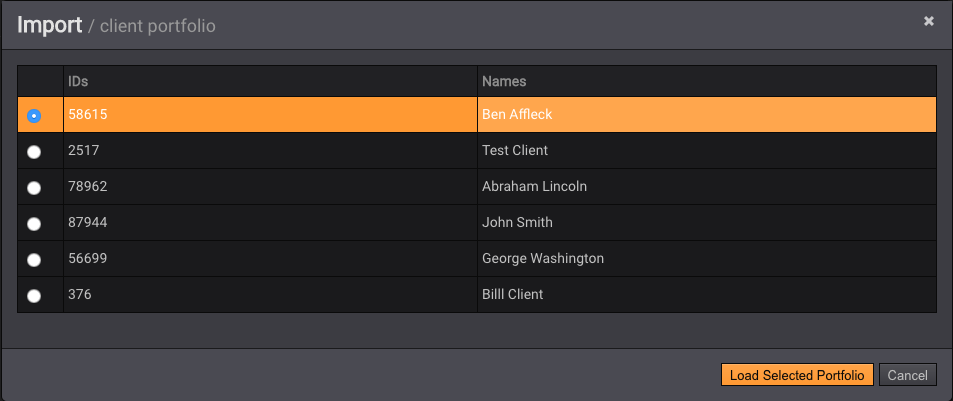
Select the household portfolio you want to import and press Load Selected Portfolio button
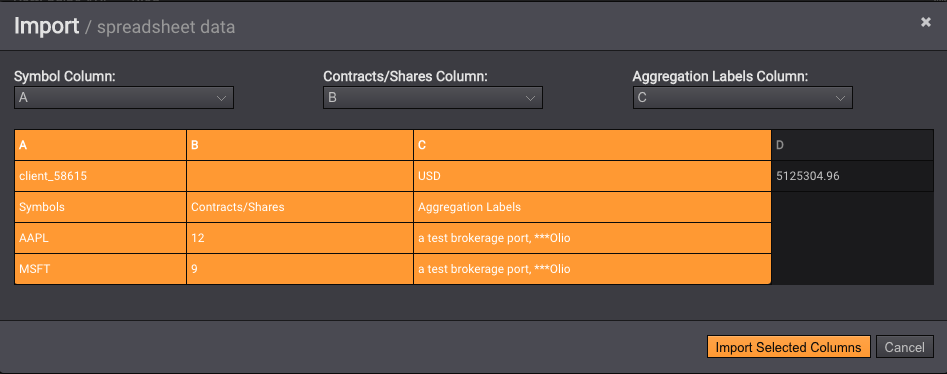
Import the selected columns:
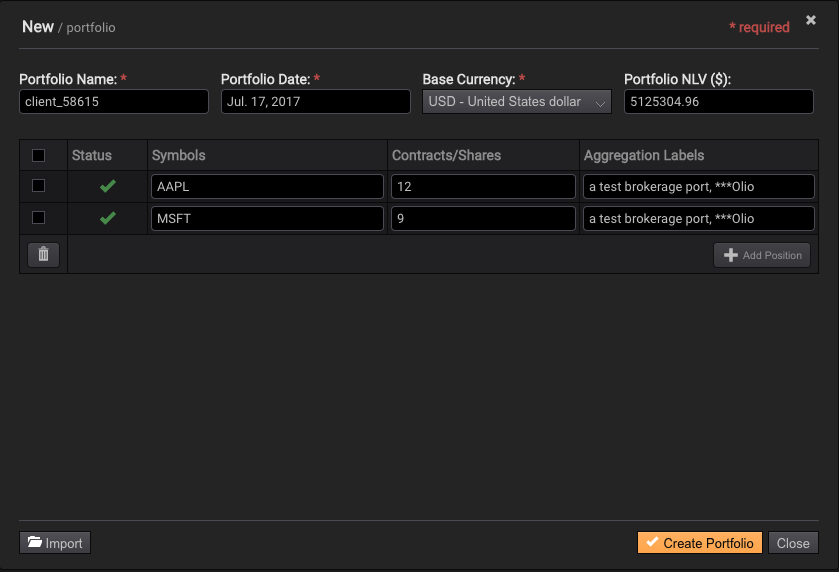
Finally press Create Portfolio:
From Everysk Samples
Select the New/Import Portfolio button in the My Portfolios tab:
Then select the Import button located in the lower left corner:
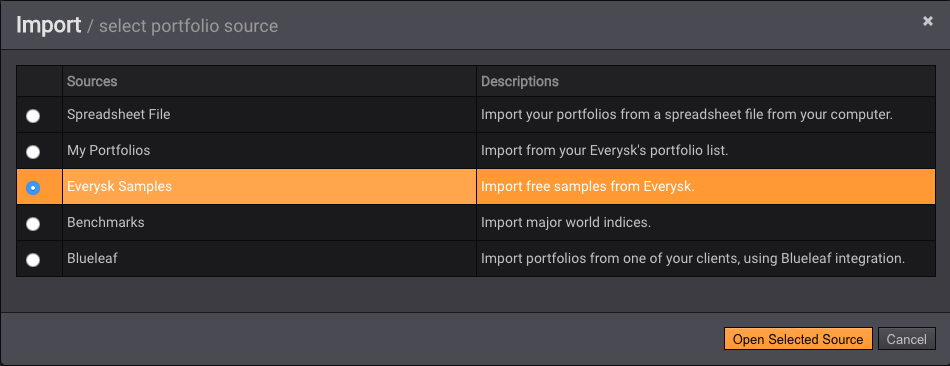
Select the source Everysk Samples:
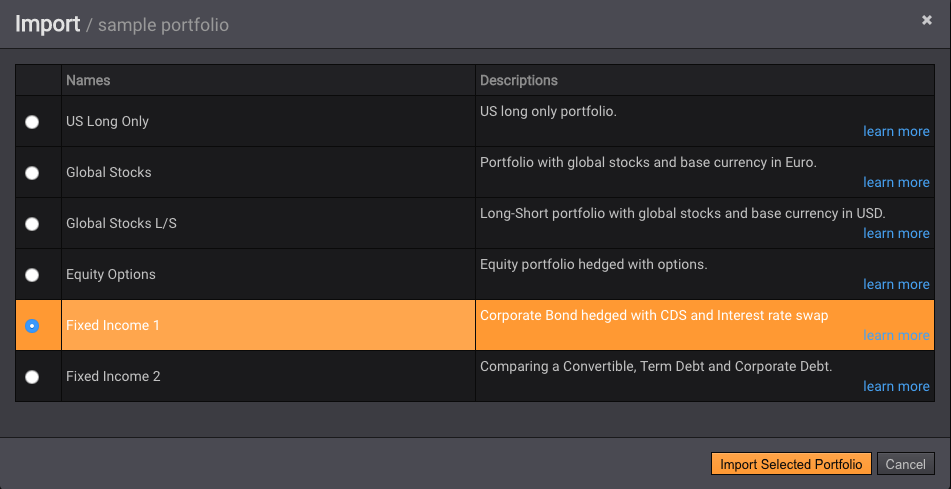
Select the sample you want to use:
Press Import Selected Columns:
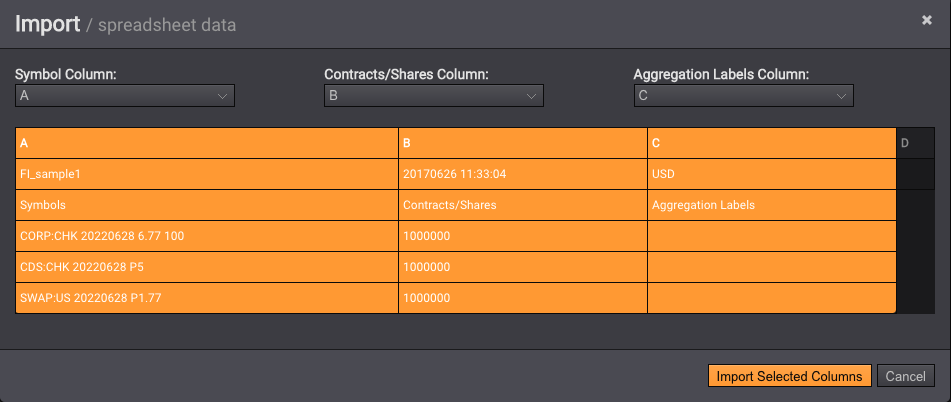
Finally press Create Portfolio: