Editing a Portfolio
Change the portfolio name
You can change the portfolio name in two places. For newly created portfolios, please click on this link. For existing portfolios, please do the following:
From the "Portfolios" section, click on the portfolio you want to edit.
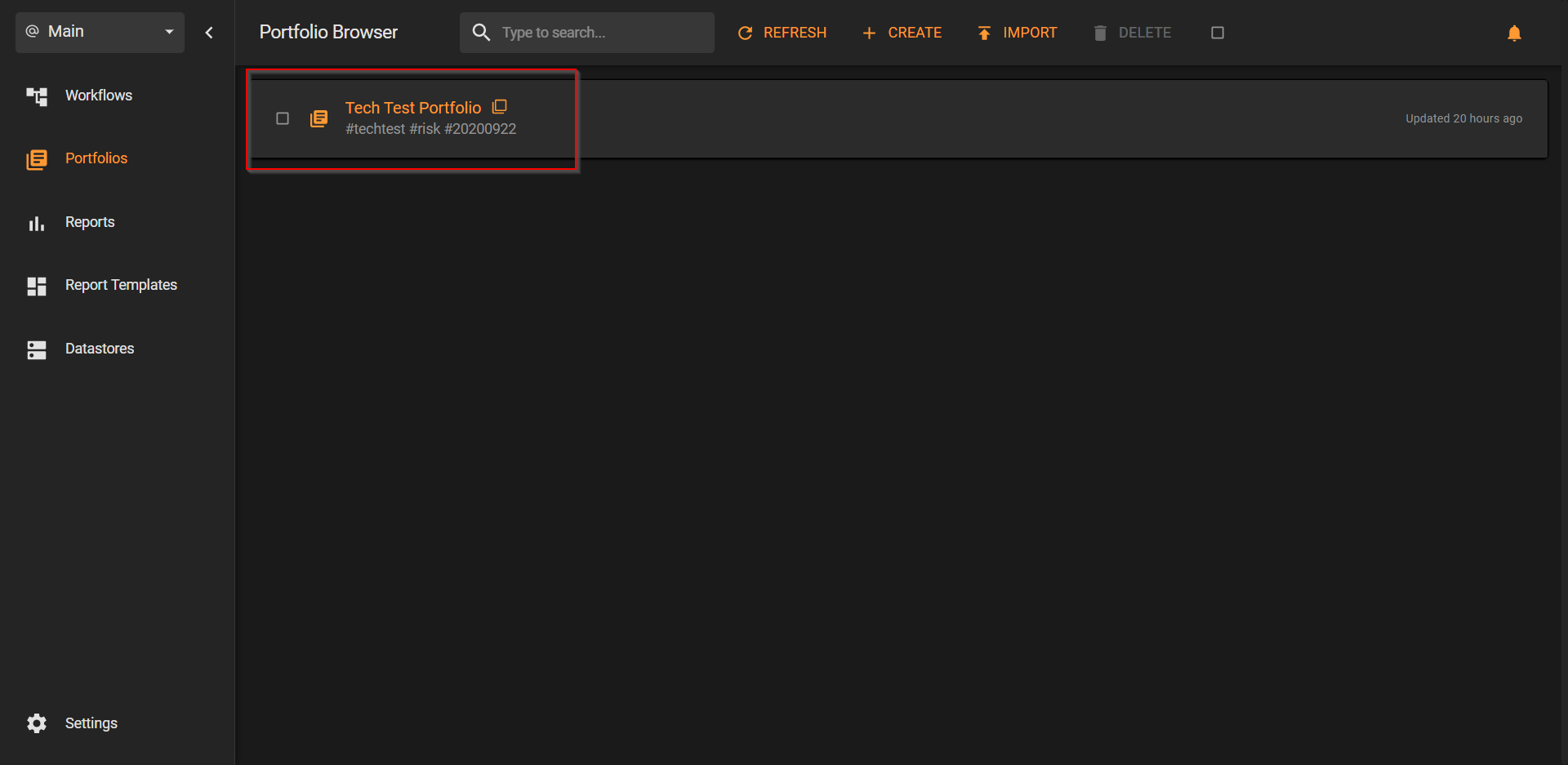
Now click on "Edit", at the top.
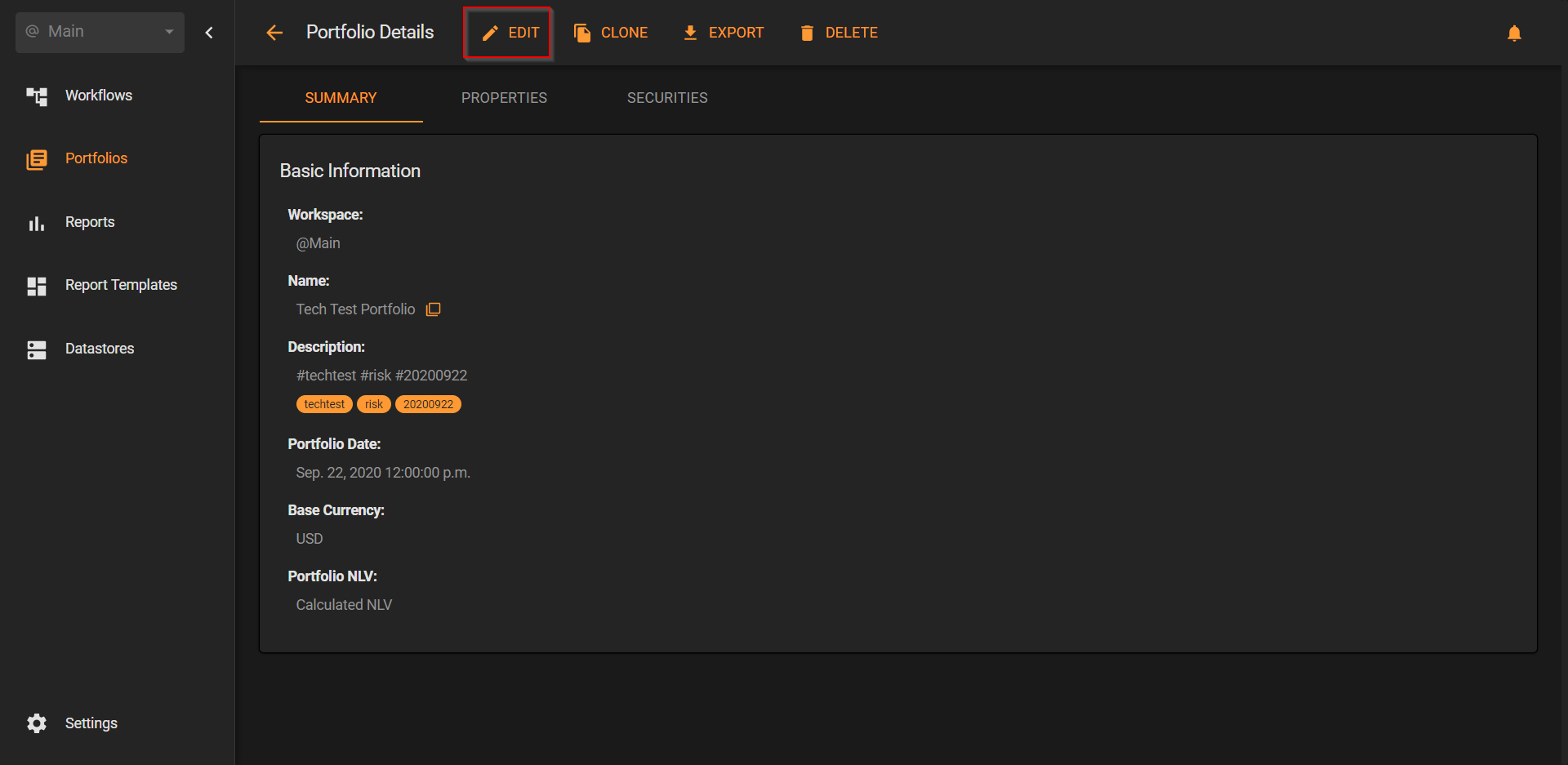
On the bottom right side, please click on "Next".
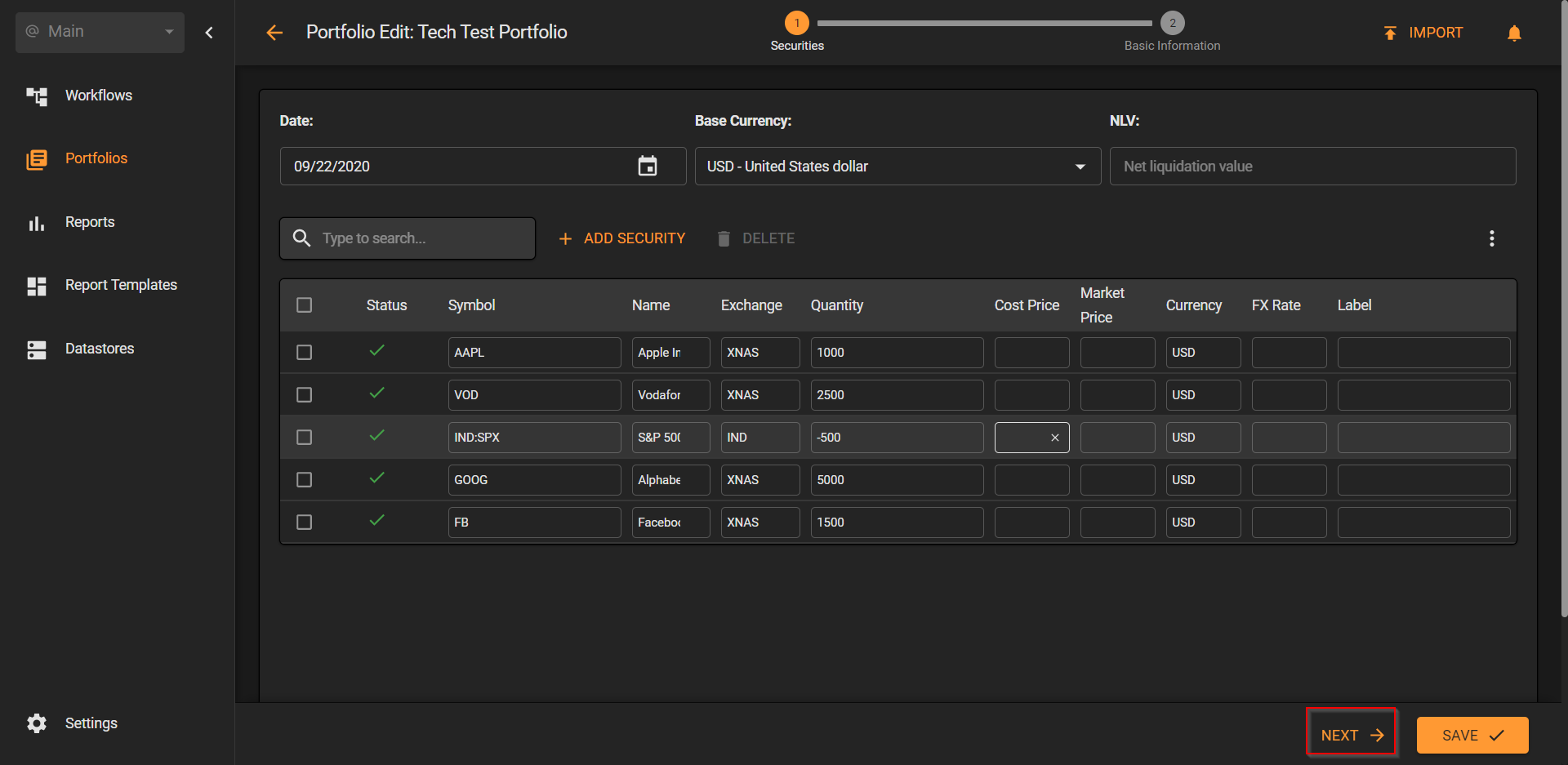
Now click on the "Name" field to edit it, then save the changes.
Change the base currency
The base currency influences the perceived risk of the portfolio in that the forward-looking profit and loss from positions denominated in domestic currencies need to be converted to a common portfolio base currency. For example, an investor with Euro as base currency that invests in Sony Corporation denominated in Yen has 2 inherent risks, namely:
- The price variations of Sony stock in Yen, and
- The variations of the FX between Yen and Euro.
Our calculation engine simulates the currency rates together with other assets to incorporate critical correlation information that would otherwise be lost.
Everysk platform allows the base currency of any portfolio to be changed on-the-fly, using any supported currency. For a list of supported currencies, click here.
You can change the base currency at the time you create a portfolio. For that, please access this link. If you want to change the base currency of an existing portfolio, please follow the steps below:
From the "Portfolios" section, click on the portfolio you want to edit.
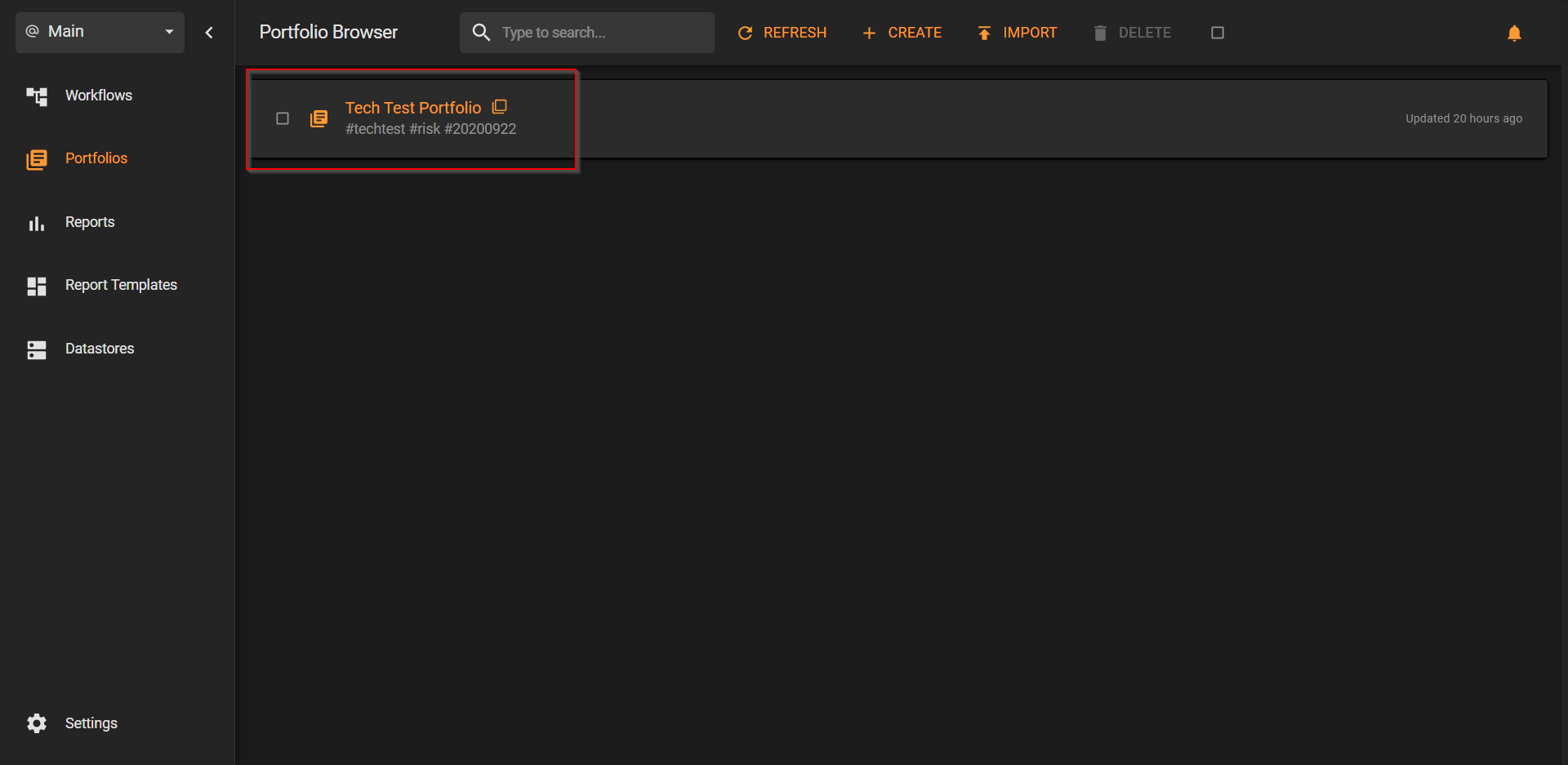
Here you can see the Summary screen. Click on "Edit" at the top.
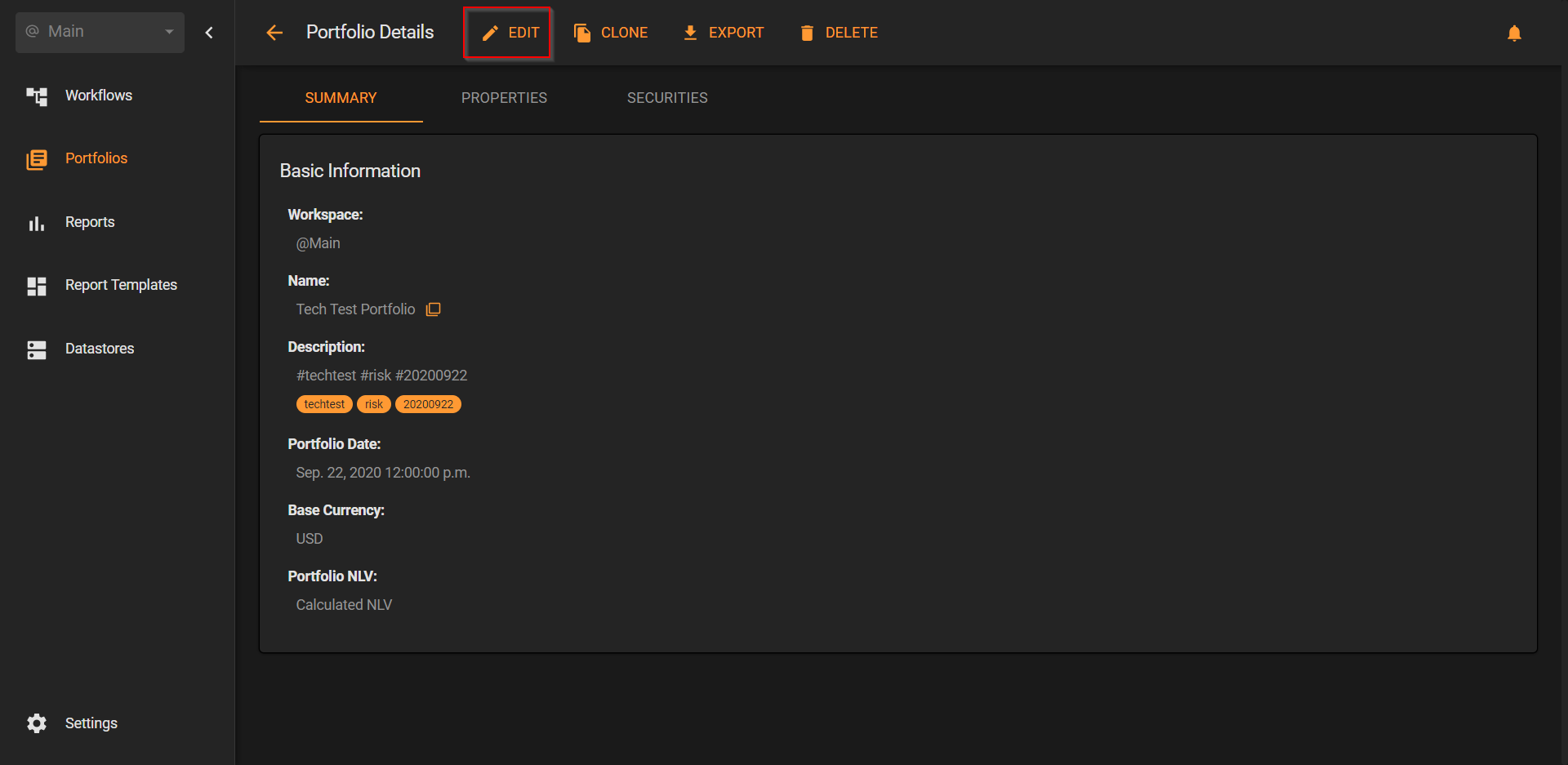
Now edit the "Base currency" and save.
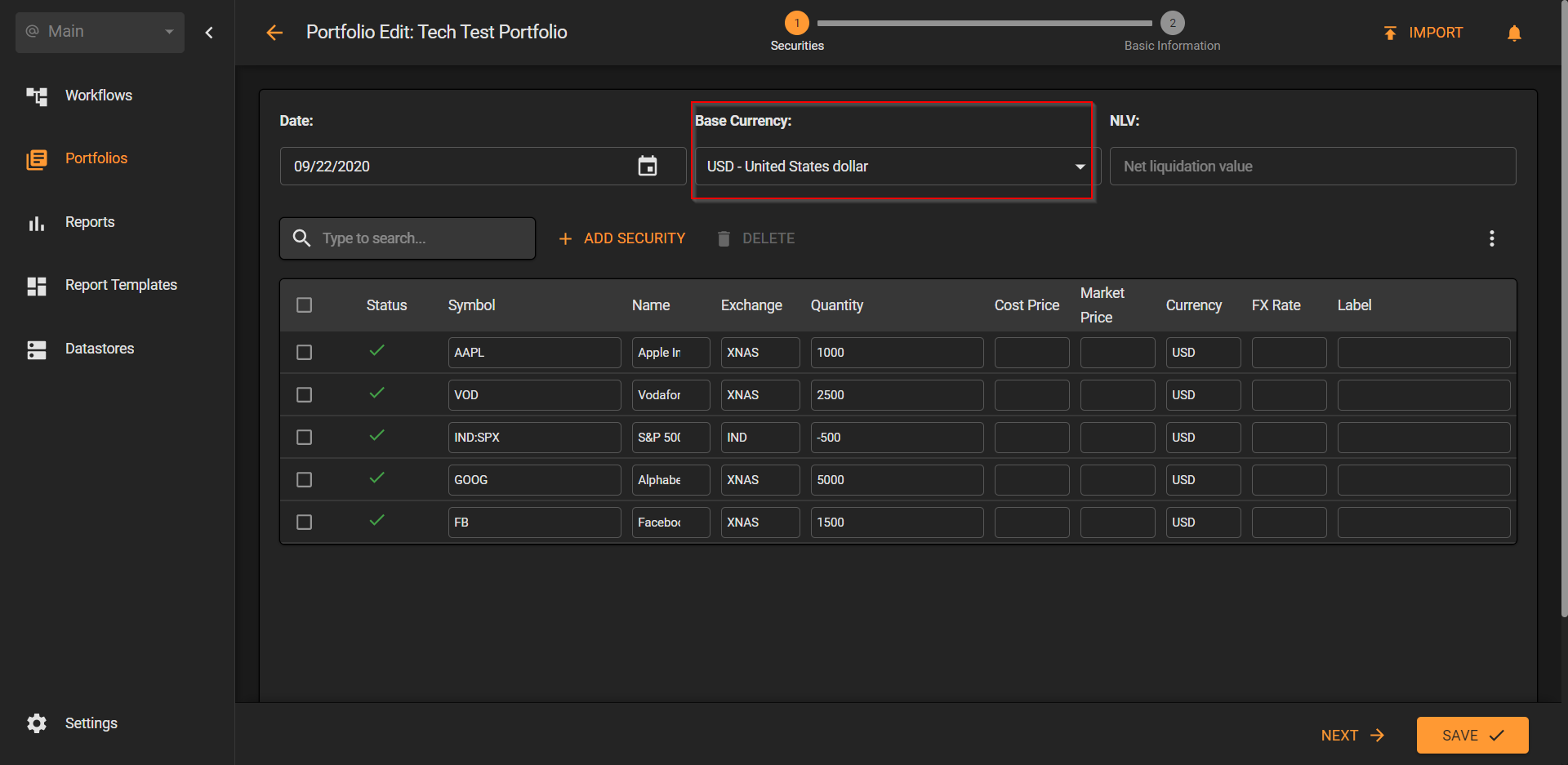
Set the net asset value
You can change the portfolio net asset value when you first build/import a portfolio:
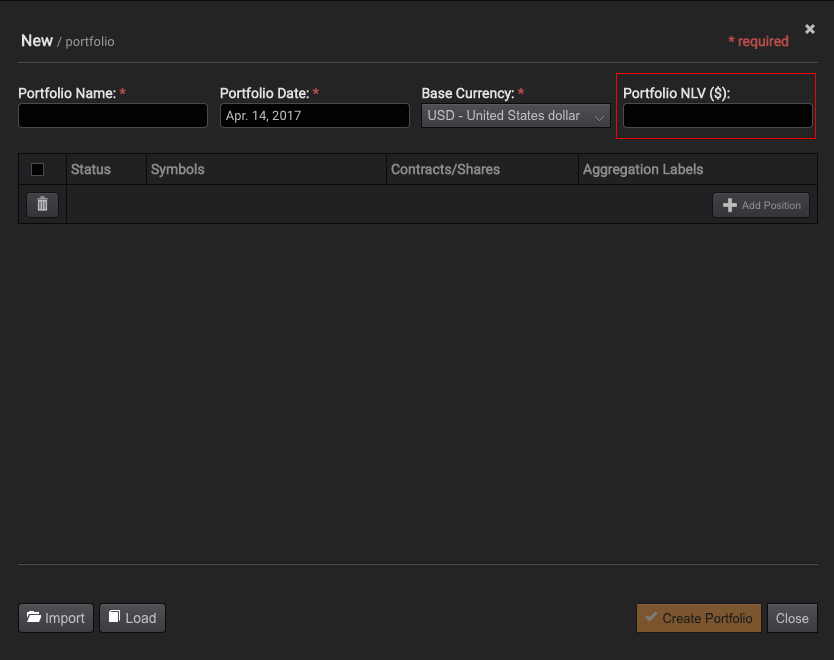
Everysk computes a forward looking distribution of profit and loss (PL) for the portfolio, in base currency. Setting the NAV will produce percent statistics proportional to the inputted NAV.
Leaving the NAV blank will force Everysk to compute it. That value might not coincide with the true NAV for various reasons, including the margining method applied to the portfolio.
Set the portfolio date
You can set the portfolio date when you are first building/importing a portfolio. From the "Portfolios" section, click on "Create".
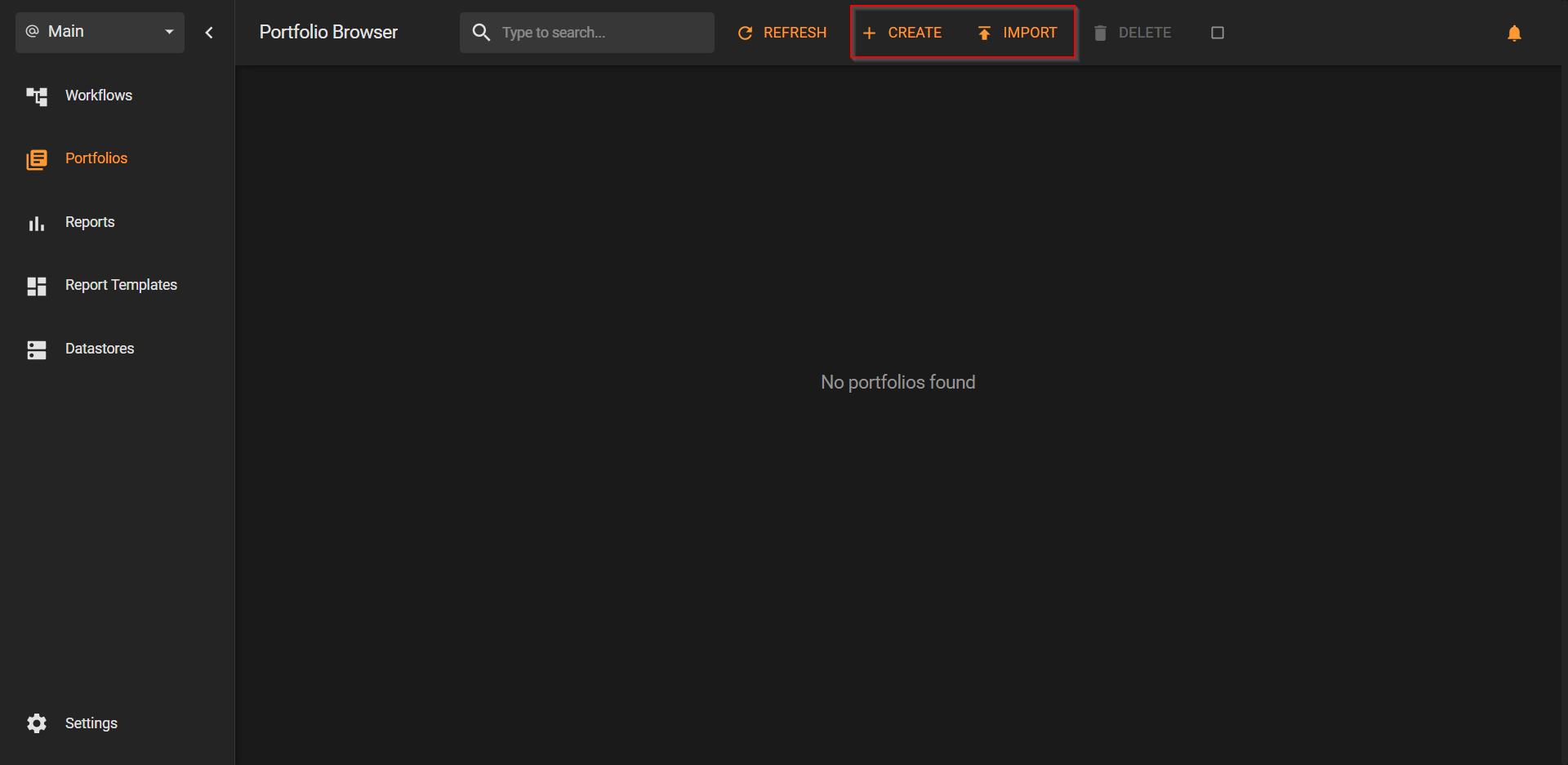
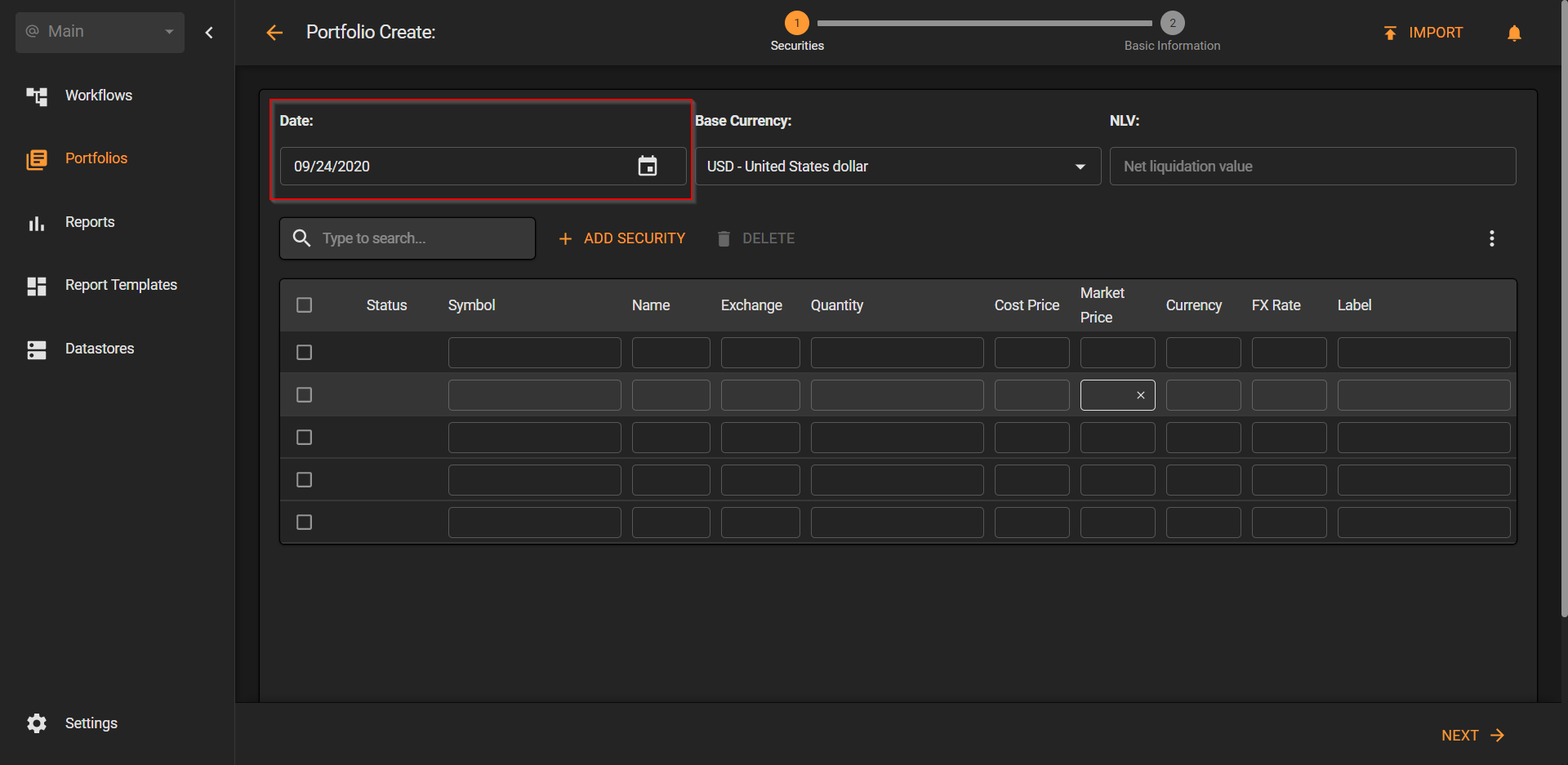
On the next screen, at the top, you can change the portfolio date.
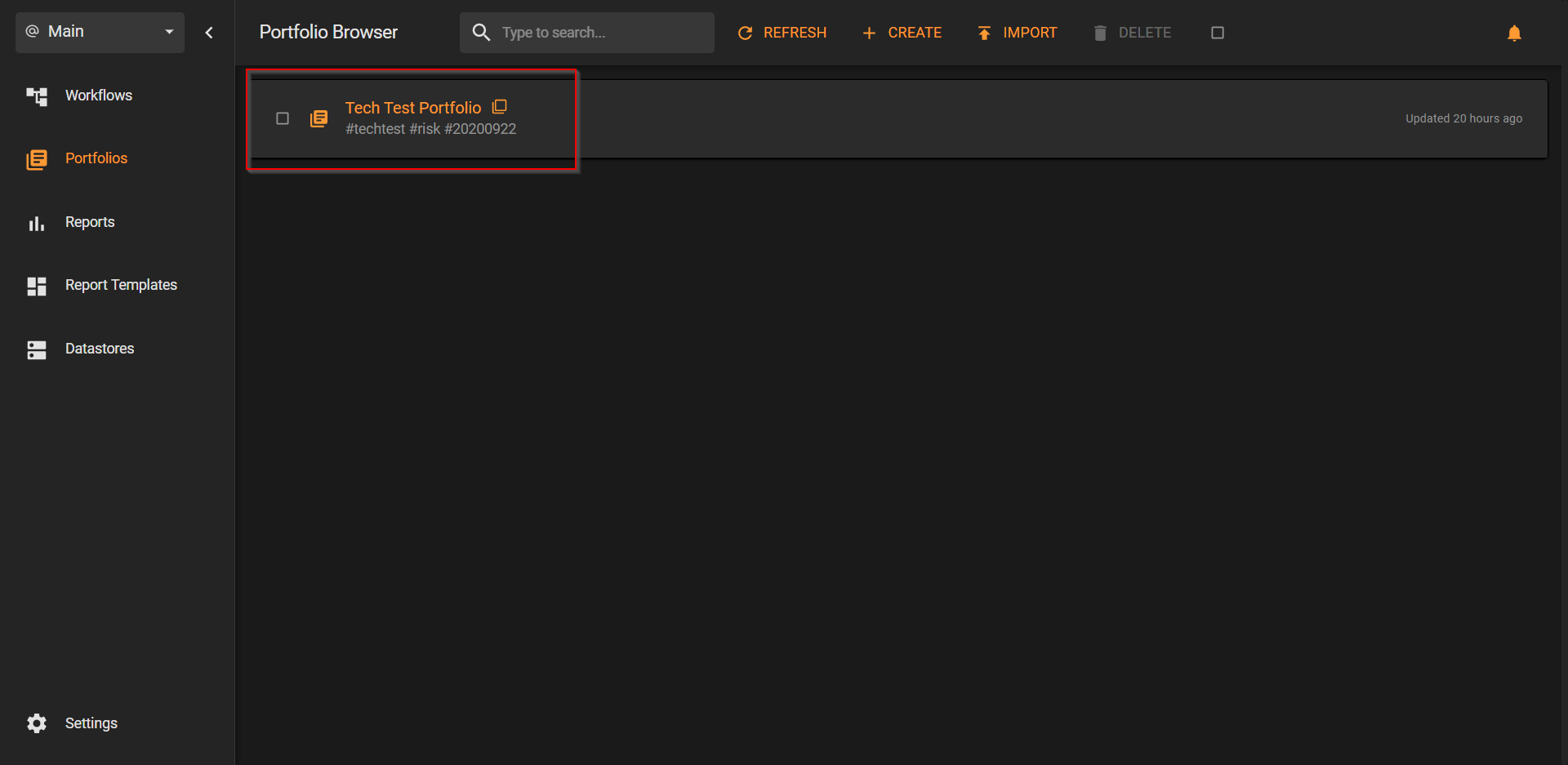
Now, if you want to change the date of an existing portfolio, please do the following. From the "Portfolios" section, click on the portfolio you want to edit.
Now click on "Edit", at the top.
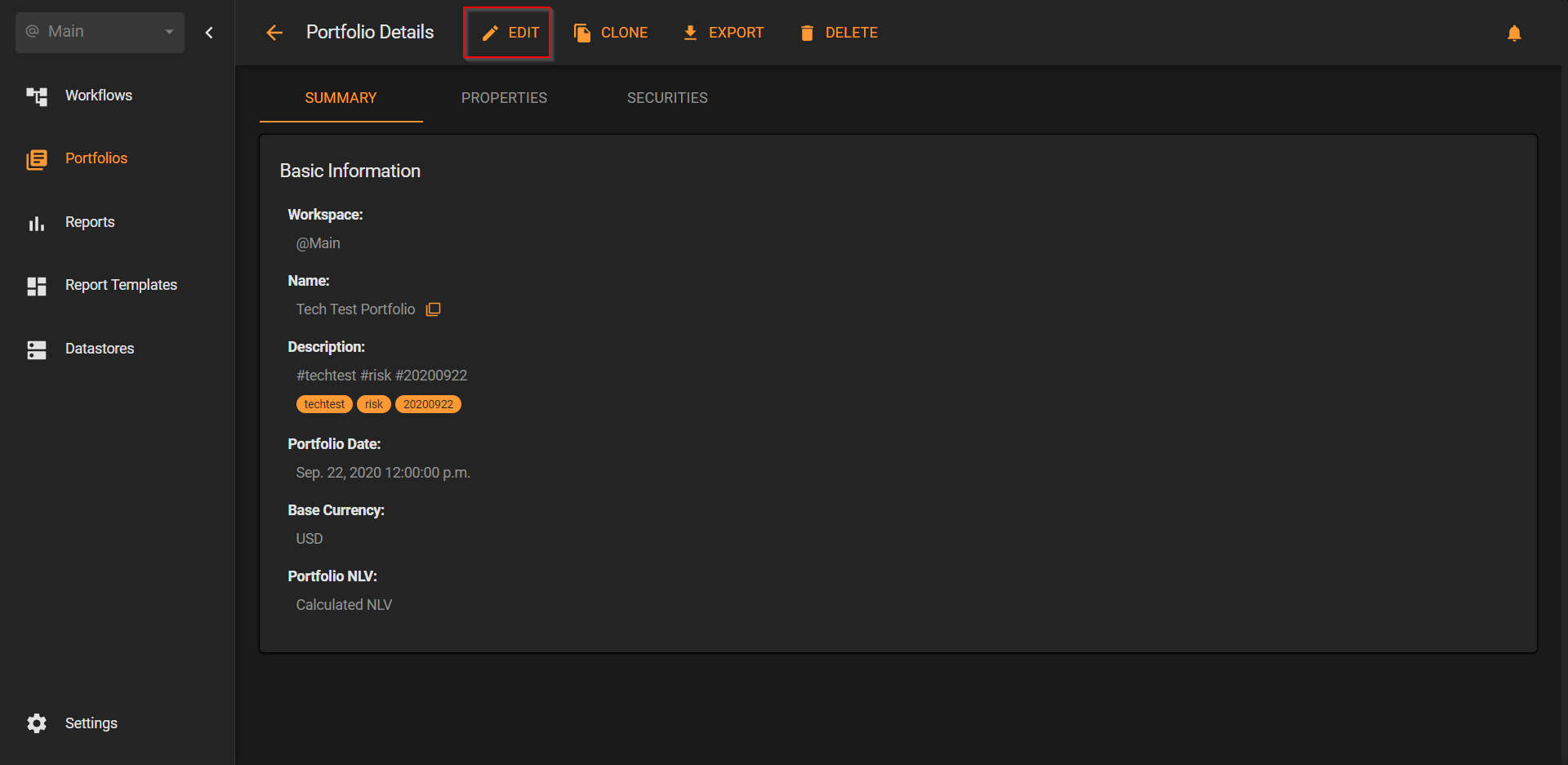
Change the date then hit "Save".
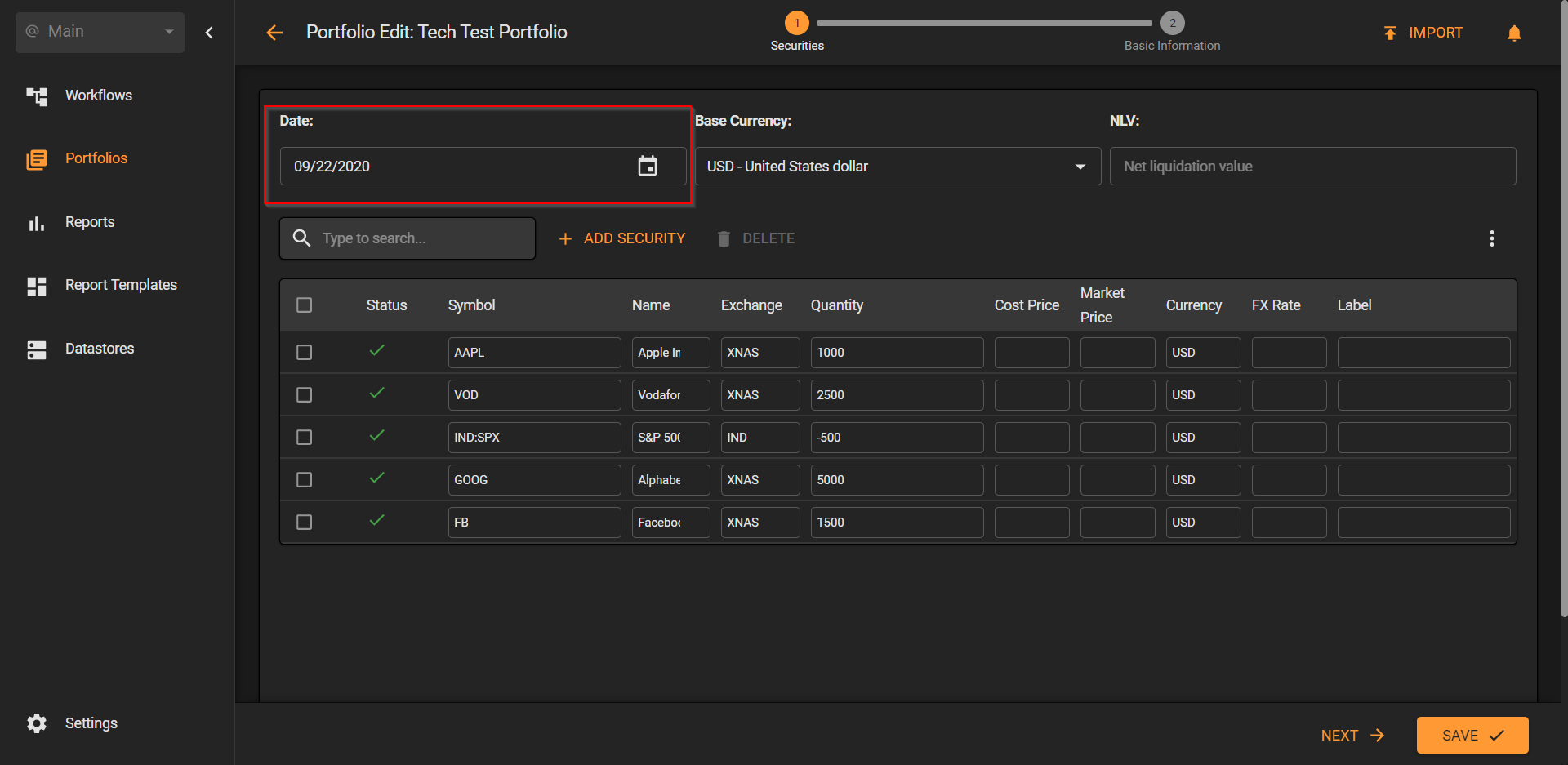
Setting the date enables portfolios to be uploaded at historical points in time. The calculation engine will use market data prevailing at that point in time.